
Editing phone photos: what to fix and what to leave alone
A few small edits make a phone photo look finished. Too many make it look fake. Here is the order photographers edit in, and where to stop.

Every professional photograph is edited. The good ones don't look edited. That is the line to aim for with phone photos too: fix what the camera got wrong, and leave what was true.
You don't need a special app. The editor built into your phone's gallery does almost everything here.
Edit in a sensible order
Photographers usually edit in roughly this order, because each step affects the next:
- Straighten and crop
- Exposure (brightness)
- Contrast, highlights and shadows
- White balance (warmth)
- Small local fixes
Filters, if you use them at all, come last.
1. Straighten and crop
A tilted horizon or a leaning building is the first thing people notice, even if they can't say why. Use the straighten tool until vertical lines are vertical and the horizon is level.
Then crop out anything at the edges that distracts: half a person, a bright sign, a stray elbow. Cropping is the most powerful edit you have, and it costs nothing.

2. Exposure
If the photo is too dark or too bright overall, fix that next. Small changes go a long way. Watch the brightest parts: if they turn pure white, you have gone too far.
3. Contrast, highlights and shadows
Contrast makes a photo punchier; too much makes it harsh. The highlights slider brings back detail in bright skies and white clothes. The shadows slider lifts detail out of dark areas.
Lifting shadows too far makes photos look flat and grey, a common sign of over-editing.
4. White balance
Indoor light often makes photos too orange, and shade makes them too blue. The warmth or temperature slider corrects this. Look at something that should be white or neutral grey, like a wall, a plate or a shirt, and adjust until it looks white.



Food in particular should look the colour it really is. A plate of dal that has turned grey or green is not appetising.
5. Small local fixes
Many phone editors can remove a small spot: a crumb on the table, a dust mark on a product, a stray wire. Use it for things that are temporary or accidental.
What to leave alone
- Skin smoothing. A little softening is fine; heavy smoothing makes faces look plastic. Keep pores and expression lines. They are what make a face look real.
- Face and body reshaping. Don't. People notice, and the person in the photo always notices.
- Saturation. Turning colours up makes skin orange and greens radioactive. If you want richer colour, try a small amount of vibrance instead.
- Sharpening. A small amount helps; too much gives crunchy edges and halos.
- Heavy filters. They date quickly, and they make every photo look the same.
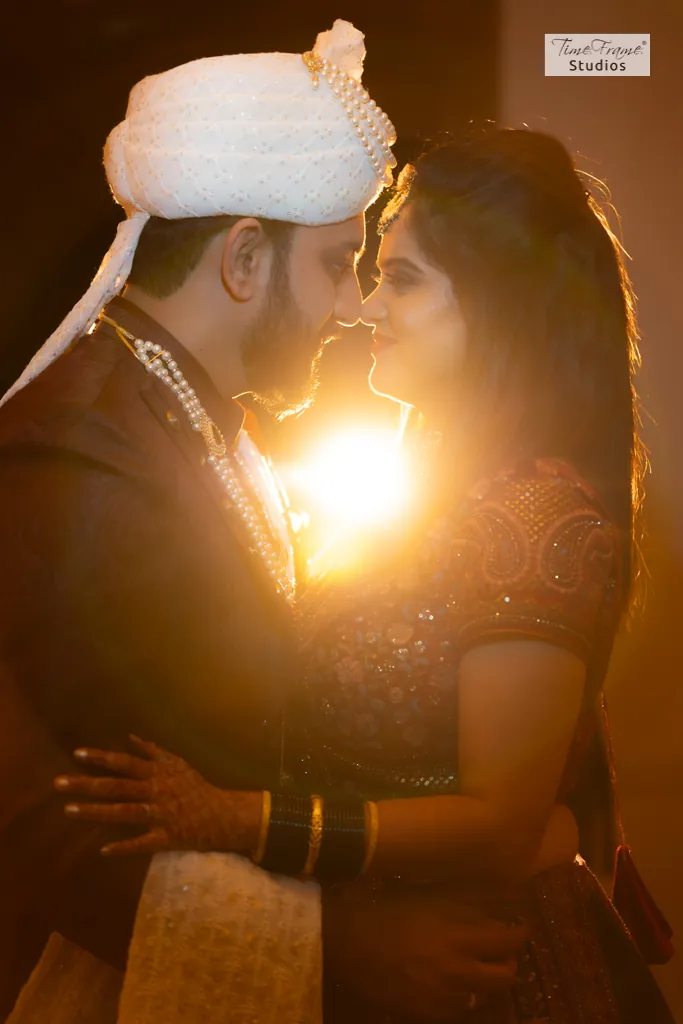
Know when a photo can't be saved
Editing can rescue a slightly dark or slightly tilted photo. It can't fix one that is blurred, badly out of focus or burnt out to white. The best edit is often to take the photo again, with better light and a steady hand. Our 10 mobile photography tips help with that part.
Keep the original
Most phone editors keep your original and let you undo edits later. Don't save over it with an exported copy. Tastes change, and you will want the unedited version back one day.
Editing at scale
Editing ten photos for your feed is easy. Editing hundreds consistently, for a menu, a product catalogue or a wedding, is a different job. Every photograph we deliver is colour-corrected and retouched, so a whole set looks like it belongs together.


